• Link to Instagram
  • Skate Park
  • Skate Academy
  • Skate Shop
Join Now | Member Sign In | My Bookings
  • Shopping Cart Shopping Cart
    0Shopping Cart
BAYSIXTY6 Skate Park
  • Join Now
  • Sign In
  • Info
    • Find Us
    • Register To Use The Park
    • Opening Times
    • Prices
    • Equipment Hire
    • Venue Hire
    • On Site
    • Rules
  • Skate Park
  • Skate Academy
    • Book Lessons
    • Beginner Only Sessions
    • Book Beginners Only
    • Book a Group Skateboard Lesson – Beginners Only
    • One to One and Private Group Skateboard Lessons
    • Book a One to One Skateboard Lesson
    • Book a Skate Camp Day Pass
  • Skate Shop
    • All Skate Shop
    • Sale
    • Hardware
      • Decks
      • Wheels
      • Trucks
      • Bearings
      • Bolts
      • Bushings
      • Complete
      • Grip Tape
    • Protection
      • Helmets
      • Pads
      • Wristguards
    • Shoes
    • Clothing
    • Brands
    • Accessories
  • Community
  • Blog
  • Sale
  • Click to open the search input field Click to open the search input field Search
  • Menu Menu
You are here: Home1 / POS Logout

Logout POS at the end of Every Shift for End of Day Cash Up Reports

Cash Up Schedule

Close the Register at the end of each shift as you hand the till over to the next person or at end of day, creating a Cash Up report for your shift.

  • 4pm
  • 9pm
  • 9pm Double shift
  • End of Skate Shop shift

Session Reports for Reception@

If a Session Report is required* then close the Register at the end of each Session and Cash Up.

*Currently under review as to whether this is necessary… (for now only do if requested…)

  • Beginners Only by 12pm
  • Day Sessions by 6pm
  • Evening Sessions by 9pm or 10pm

To Logout of POS and Cash Up
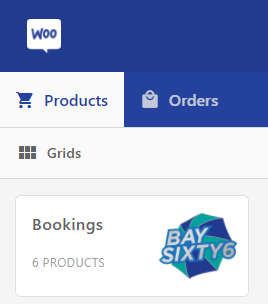
Select the Woo icon in the top left above Products
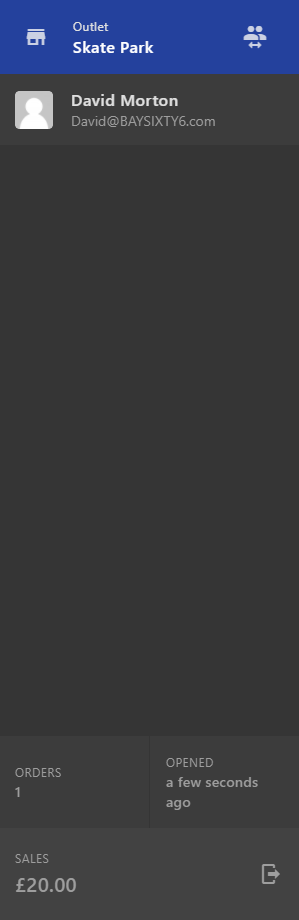
Then select the Exit icon bottom right, this will open the Cash Up panel

Closing the Register – Cash Up panel

From the Exit icon the Cash Up panel will open to enter details for the Cash & PDQ totals and produce the ‘End of Day‘ report.
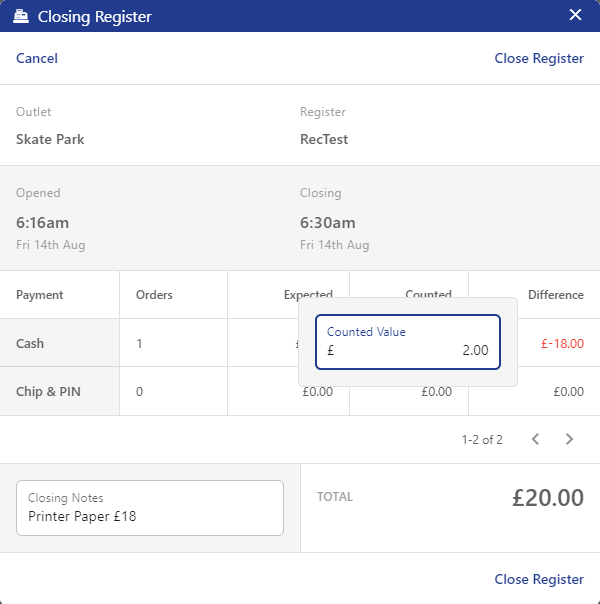
Example : £20 Cash sale was the only 1 Order and there is only £2 Cash in the till
Difference = -£18
Closing Notes : Printer Paper £18
accounts for the -£18 Difference

Enter into the Counted column Cash & PDQ receipt counts from Shift close

  • Click into the Counted column and enter the total Cash then total PDQ receipts into the Counted Value pop-up.
  • Make sure to press Enter once a value has been added to close the field and save your data!
  • The difference will show in the Difference column.
  • Notes for Petty Cash are entered into the Closing Notes field and should account for any differences, if not add a note why.
  • Differences will occur for Bookings sold and paid for at the door as those Cash & PDQ receipts will NOT be included in the POS report.
  • Positive balances in the Difference column should equal Bookings sold on the door as more receipts and cash will be present at Cash Up than was rung through POS.
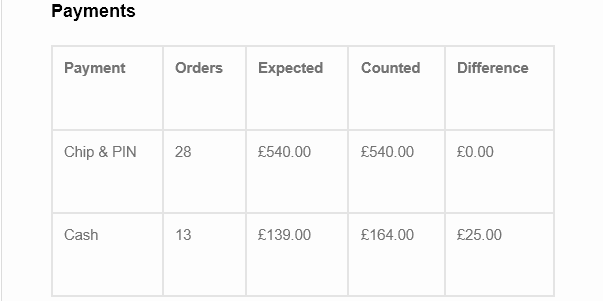
  • Opening Float of £25 should always show as a positive Cash Difference (see Cash Up example below…)
Payments 
Payment 
Chip & PIN 
Cash 
Orders 
28 
13 
Expected 
E540.OO 
E139.OO 
Counted 
E540.OO 
E164.OO 
Difference 
EO_OO 
25.00

Cash Up Example showing Cash Float £25

Last, hit Close Register and the ‘End of Day’ Report will be sent to Reception@ or SkateShop@

  • Select Close Register from the bottom right of the Cash Up panel.
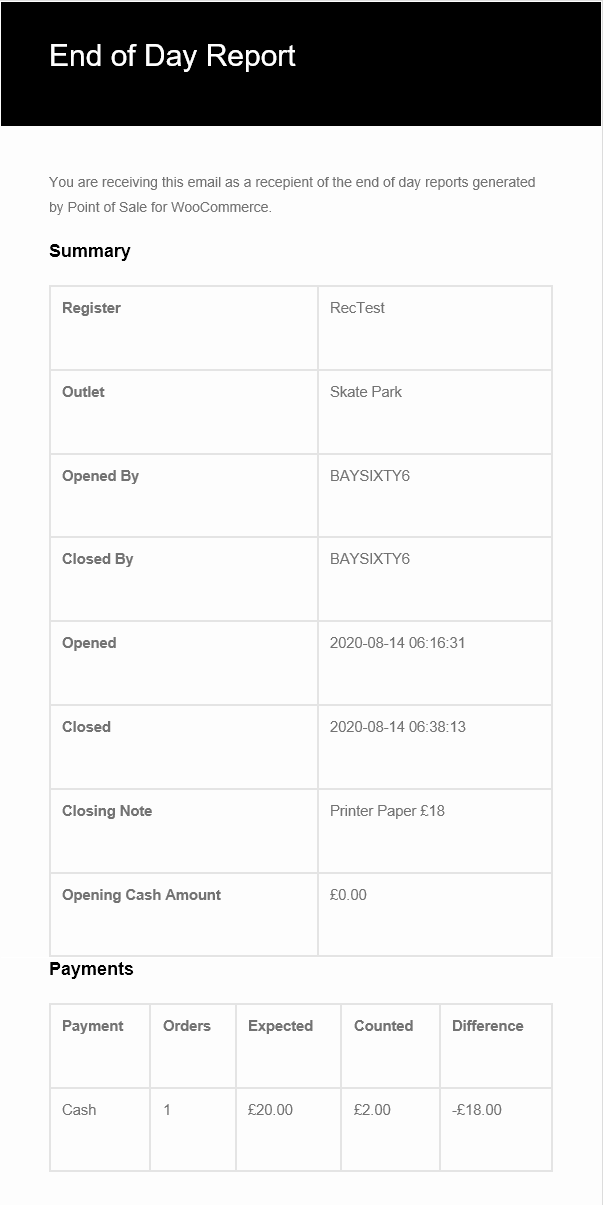
End of Day Report for Skate Park outlet emailed to [email protected]

You’re done!

How to Manage Bookings
© Copyright - BAYSIXTY6 LIMITED | Web Development - Rubber Duck Digital
  • Link to Instagram
  • Skate Shop
  • Blog
  • About
  • Terms and Conditions
  • Privacy Policy
Scroll to top Scroll to top Scroll to top
We use cookies to ensure that we give you the best experience on our website. If you continue to use this site we will assume that you are happy with it.